Features
Everything Tracky does
The game packs get the headline, but the engine underneath is the actual product. Here's all of it, in one place.
01 · Timers & grid
A grid that scales to how you play
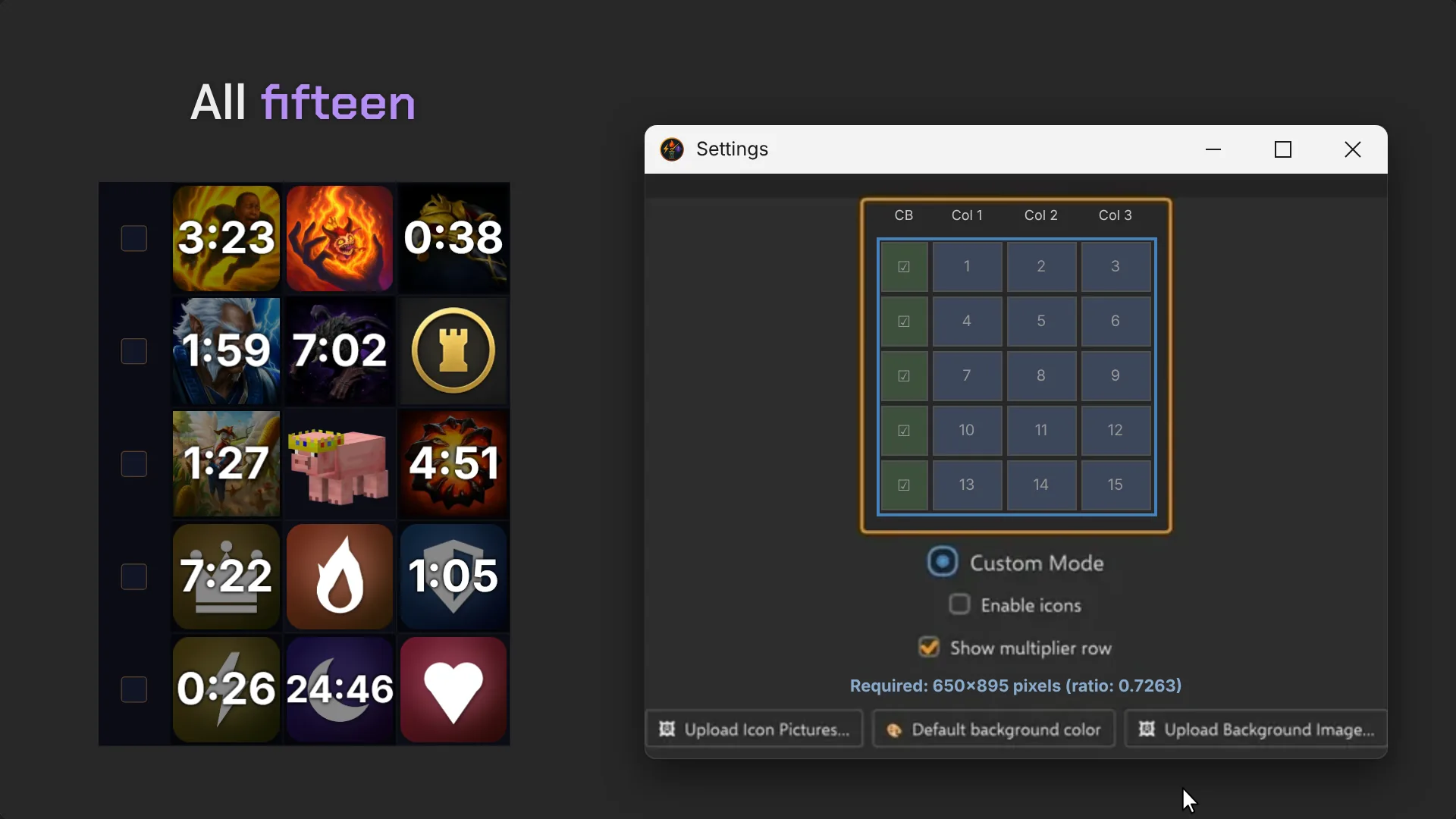
One timer or fifteen: drag over the grid in Settings, Visual, and Tracky changes size the moment you let go. Every timer keeps counting while it does.
Compact layout
A tight grid for players who want the overlay small and out of the way, showing only what's live.
Full layout
Every slot in your active pack visible at once: good for tracking a whole team's cooldowns, not just your own.
Custom rows & columns
Drag over the grid picker in Settings, Visual: anything from a single timer up to 3 columns by 5 rows, to match your monitor or just your preference.
02 · Custom art & backgrounds
Nothing is locked to the built-in art
Every timer and the whole background take your own pictures, and you can make whole timer groups of your own. That's all the four game packs are: the first groups someone made.
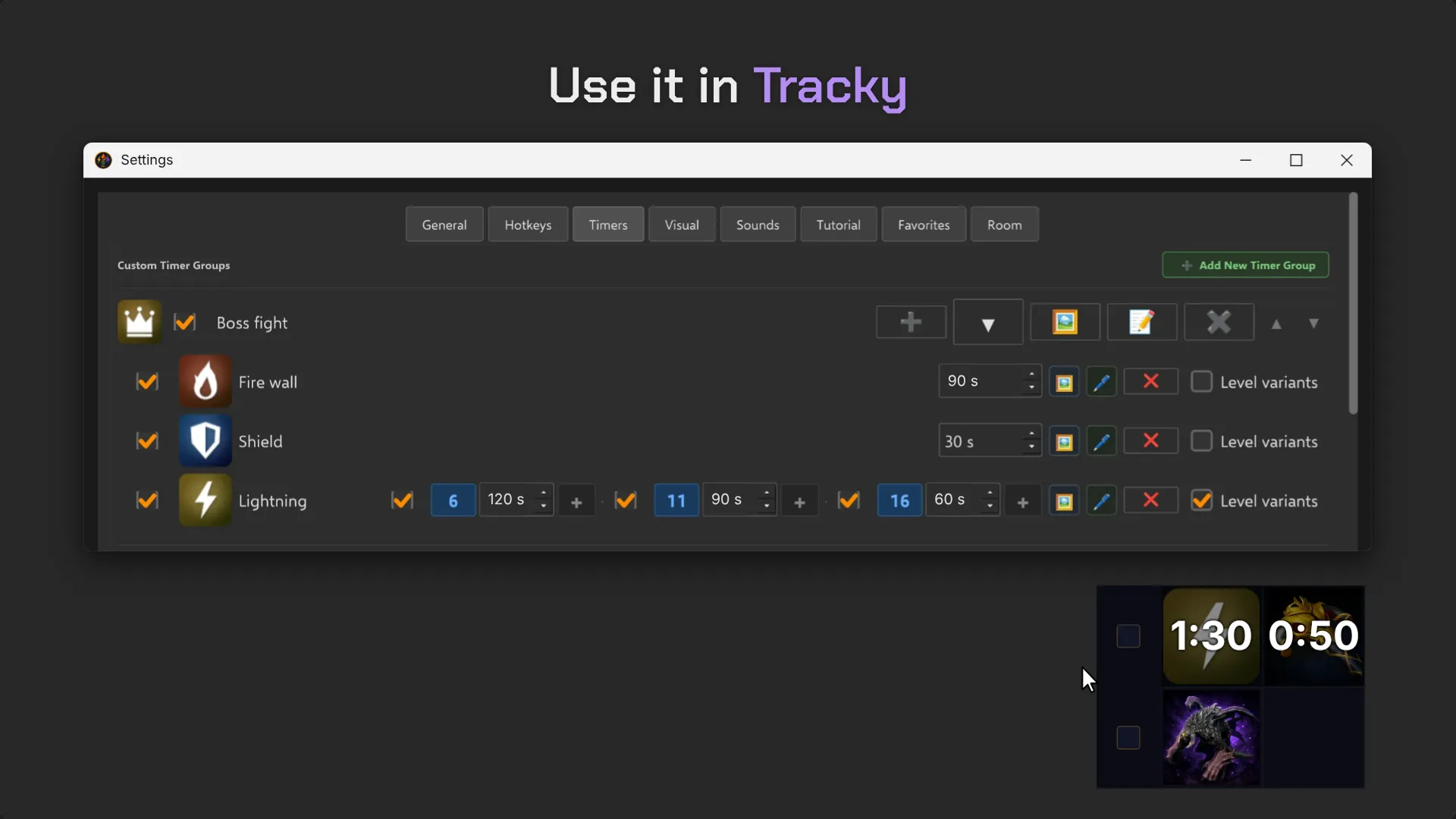
Your own timer groups
Settings, Timers, Add New Timer Group: give it a name and a picture, pick its timers' pictures and set each time. A timer can even have a different time per level. The group then shows up in Set timer, next to the game packs.
Icons
Upload PNG, JPG, JPEG, WEBP, or BMP. Icon slots need to be square; Tracky will letterbox or crop non-square uploads to fit, so square source images look cleanest.
Backgrounds
Two options: a solid color picked from a full color-wheel picker, or a complete custom image. Backgrounds don't need to be square; any aspect ratio works.
03 · Profiles
5 save/load slots
A profile captures your grid layout, art, and settings as a single snapshot. Swap between them instead of rebuilding a layout every time you switch games.
Hotkey-bound
Every save and load slot gets its own assignable hotkey, so switching profiles doesn't need a menu.
Custom tooltip labels
Name each slot something you'll actually recognize, like "Jungle," "Support," or "Stream Overlay," instead of "Profile 3."
Resume on launch
Turn on "resume last profile" and Tracky opens exactly where you left it, every time.
04 · Overlay behavior
Built to sit on top and stay out of the way
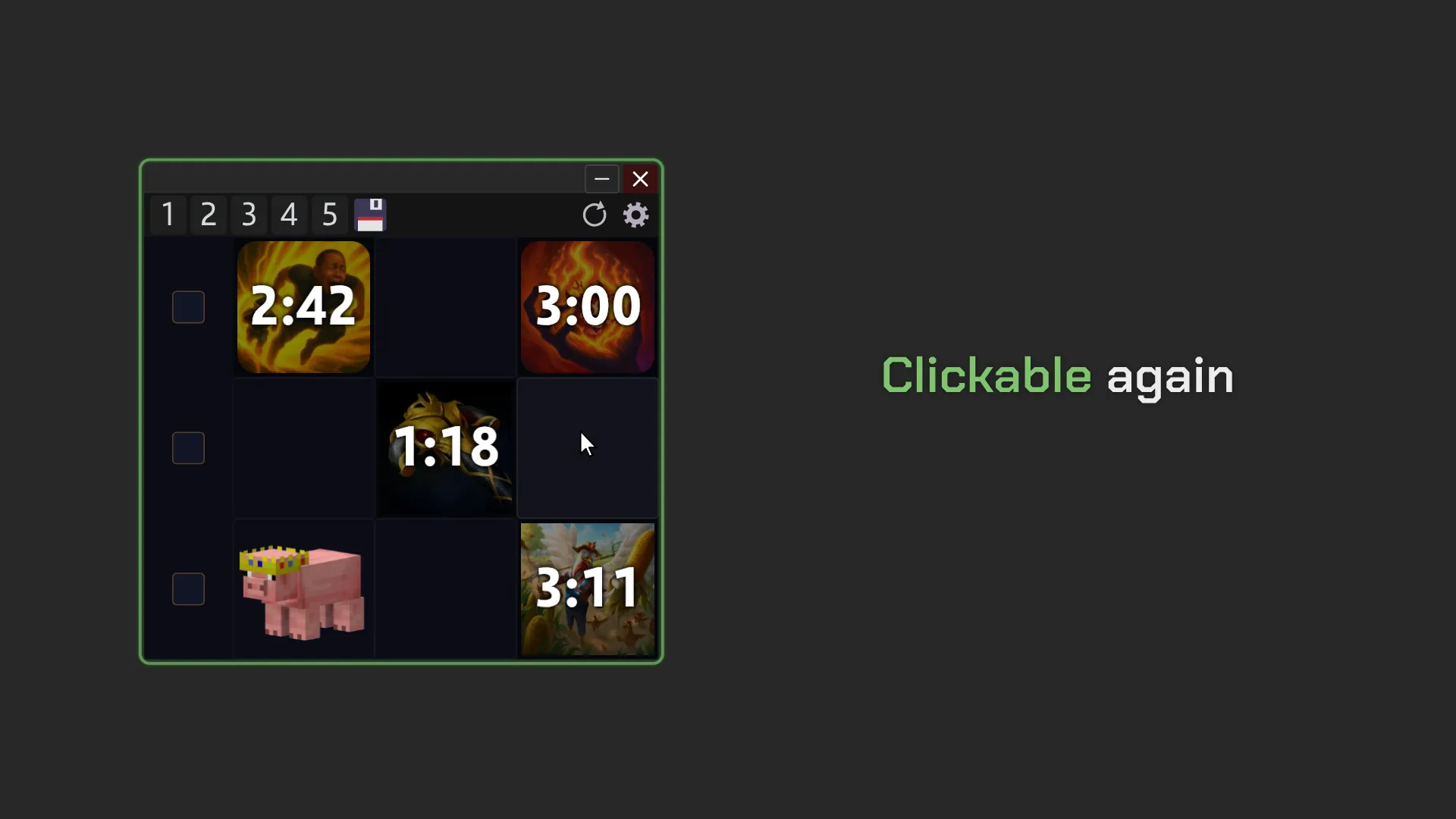
Frameless & always-on-top
No title bar, no window chrome: just the grid, floating above everything else. Adjustable transparency lets it fade into the background when you're not actively glancing at it.
One of the two features people ask about most
Click-through mode
Your clicks pass straight through Tracky to whatever's underneath, so it never steals a click mid-fight, yet it stays visible and on top. To click a timer, rest the cursor on Tracky for a moment.
OLED burn-in protection
An always-on-top overlay is exactly the kind of static image that causes OLED burn-in over long sessions. Tracky slowly hue-shifts the art to prevent it, including the multiplier preset images shown in the checkbox column, if you want.
5 teleport positions
Save five screen positions in advance, then jump the whole window to any of them instantly with a hotkey, handy for multi-monitor setups or switching between windowed and fullscreen games.
05 · Hotkey system
Never touch the mouse mid-fight
If you can click it, you can probably bind a key to it instead. Show/hide, save or load any of your 5 profiles, jump to a saved position, pause every timer at once, toggle click-through, or copy the current state to clipboard: all bindable, all rebindable.
Window & visibility
Show/hide, panic-resize to your main screen, open settings, toggle click-through.
Profiles & position
Save or load any of your 5 profiles, jump to any of 5 saved teleport positions.
Timers
Select a timer, adjust it manually, pause or resume every timer at once, cycle rows.
Callouts
Copy every active timer to clipboard, or start the in-game elapsed-time counter.
Display
Toggle OLED protection on or off without opening the settings window.
Mouse options
Timer select doubles up on middle-click or Numpad 0, whichever your setup prefers.
06 · Sound design
A sound for every event, all of them optional
Six distinct events, each with its own custom .wav file and independent volume slider.
Hover
Plays when your cursor passes over a timer icon.
Timer complete
Marks the moment a cooldown finishes and is ready again.
Low-time warning
A heads-up shortly before a timer finishes, so you're not caught looking away.
Teleport
Confirms the window just jumped to a saved position.
Startup
Plays once, when Tracky first opens.
Checkbox
A small click confirmation for toggles throughout the settings window.
07 · Clipboard-to-chat: the other feature people ask about most
Call it out without alt-tabbing
One hotkey, Copy Timers, copies every running timer to your clipboard as one line of text, ready for team chat: each row's name, then its timers, like "Enemy Zeus 1:07". Any key or mouse button can be the hotkey, the wheel click too.
There's a second layer to it: double-tap the same hotkey when the game starts (or use the Start in-game timer hotkey) and Tracky runs a game timer in step with the game's clock. From then on every copy shows the game time each timer is back, "Enemy Zeus 13:12", so your team can check it against the clock in the game. A row's name is the name of its icon (rename it in the icon's box) or the one you type in Settings, General.
Not for League of Legends: Copy Timers does not work with League.
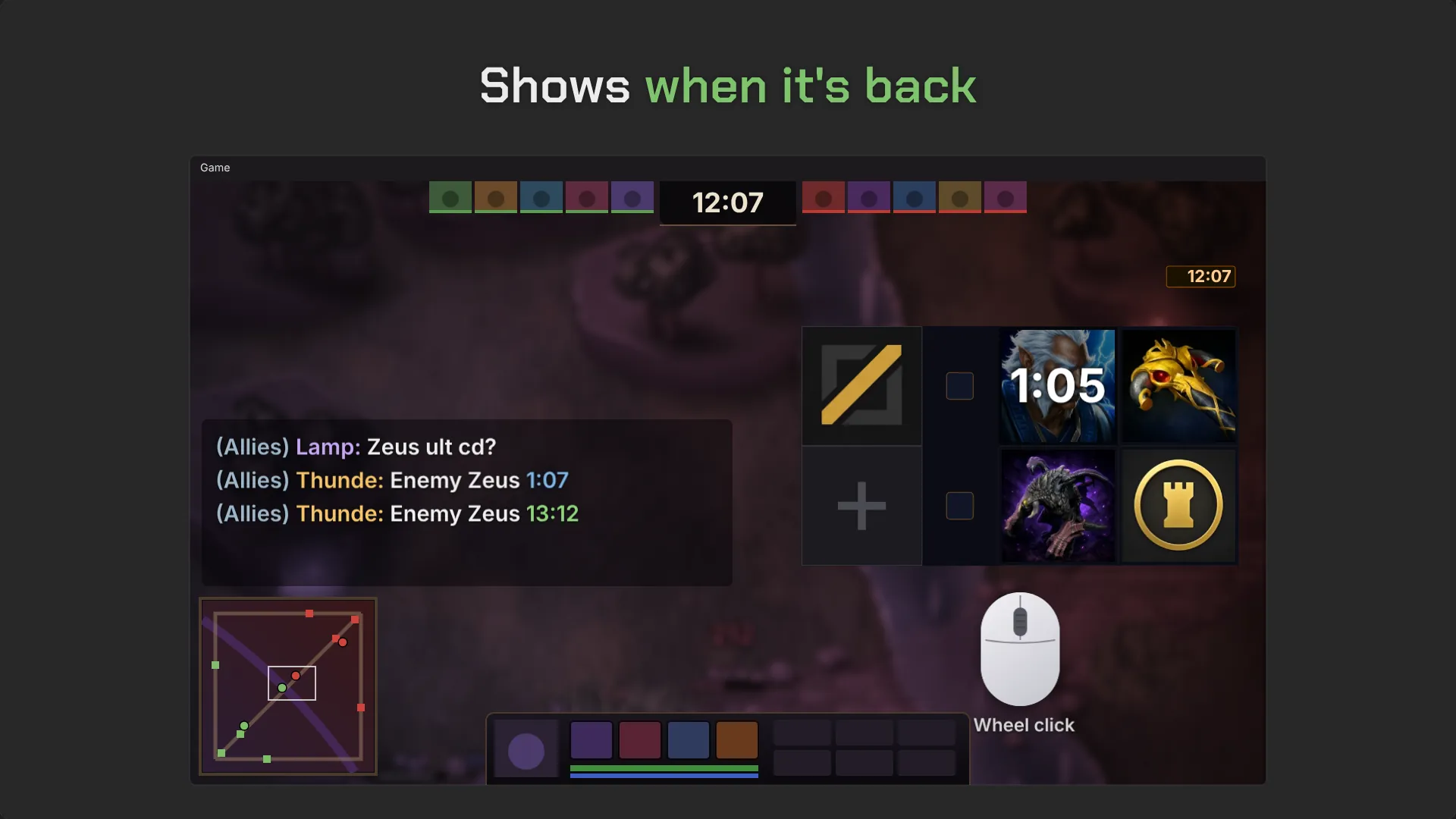
See it against your game
Pick your pack and see the exact coverage before you install.